
Test the Current Build on Your Device
The Roblox listing does not document this game’s mobile controls. Open Place ID 136398881015015 in the Roblox app and test the touch interface yourself instead of borrowing button names or gestures from another SAE title.
Start with movement and the camera. Then check prompts, menus, and what happens after a rejoin. Leave any admin panel until the basic controls work.
Use the official Roblox experience page, confirm Gragnano Italia STUDIOS, and check the loaded title before you begin.
Prepare a Clean Mobile Test
Give yourself a clean screen before you start. It makes missing or blocked controls much easier to spot.
- Update the Roblox app through your device’s normal app store.
- Close overlays, floating keyboards, and screen tools that cover touch targets.
- Rotate to the orientation the game opens with and keep it there for the first pass.
- Join a server and wait until counters, menus, and character movement finish loading.
- Take one screenshot of the untouched interface.
Resist the urge to tap everything. That first screenshot gives you a baseline when a button vanishes, a label is clipped, or a panel shifts after rotation.
Check Movement and Camera Control
Test movement before any economy or admin action.
| Test | Pass condition | If it fails |
|---|---|---|
| Move in four directions | Character responds consistently | Lift your thumb, reset the touch area, and retest away from menus. |
| Rotate the camera | View turns without opening a panel | Close overlays and test from an empty screen area. |
| Move while rotating | Both inputs remain responsive | Reduce simultaneous touches and check for a blocked screen region. |
| Approach an object | A readable interaction prompt is displayed | Change camera distance and verify the object is actually interactive. |
| Leave a menu | Movement controls return | Close the menu fully and check whether a transparent overlay remains. |
Only use a gesture or button name that the live screen labels. Roblox experiences can use default controls, custom controls, or both, and the listing does not say which setup this game uses.
Check Economy and Object Prompts
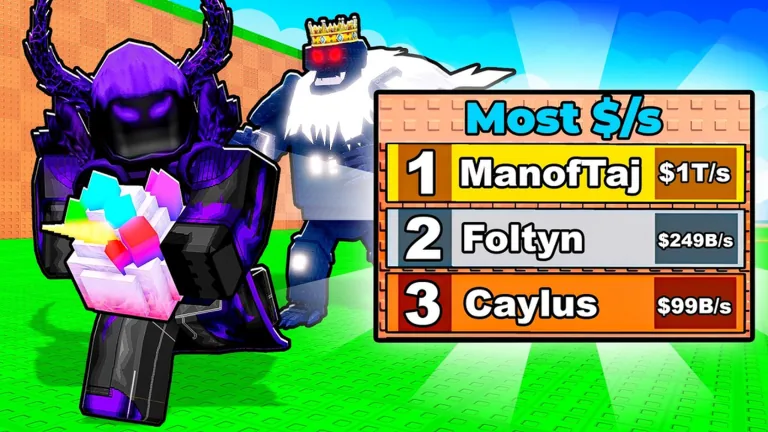
The cover shows a character carrying a bright faceted object beside a Most $/s board. On mobile, find out whether you can use those parts of the game through touch. Do not guess what the object is called.
When you approach an interactable object:
- read the exact object and action label;
- check whether the prompt remains visible above the touch controls;
- tap once and watch which counter or held object changes;
- confirm whether movement remains available while carrying it;
- look for a clear way to place, drop, cancel, or finish the interaction;
- check whether the
$ /svalue changes immediately or after another step.
If no prompt is shown, do not repeatedly tap the object. Move away, approach from another angle, and check whether a menu or loading overlay is blocking the interface.
Test Any Admin Menu Carefully
INFs ADMINS is part of the title, not a mobile control manual. The public page does not explain how an admin interface opens, which devices it supports, or what commands it contains.
If the current build displays an admin control, test the layout before activating an effect:
- Open the panel using the control shown on screen.
- Check whether the entire panel fits without hiding the close control.
- Scroll to the top and bottom.
- Open and close any visible category without confirming an action.
- Tap a text field and see whether the keyboard covers its label or confirmation area.
- Check whether a target selector shows full player names.
- Rotate the device once and confirm the panel remains usable.
- Close the panel and verify that movement controls return.
Desktop keybinds and generic admin syntax do not belong in a mobile guide for this game. Use the labels on the live touch interface.
Check Target Selection and Safety
On a small screen, it is easy to tap the wrong player. Before confirming an action, read the selected name and the effect scope again.
- A self label should identify your own account clearly.
- A player list should remain readable when names are long.
- A server-wide action should be unmistakable before confirmation.
- Destructive or progress-changing actions should not be tested on strangers.
- A confirmation control should remain visible above the software keyboard.
If the panel truncates a target or effect name, cancel the action. Retest after closing the keyboard, changing orientation, or reopening the panel. Do not guess what hidden text says.
Measure Readability, Not Just Frame Rate
Smooth frame rates do not help if you cannot read the interface. Check the information you need before making a choice:
| Interface area | What must remain readable |
|---|---|
| Cash display | Full value and number abbreviation |
$ /s display | Rate label and current value |
Most $/s board | Player names, order, and rates |
| Interaction prompt | Object name and action |
| Admin panel | Category, target, effect, cost, cooldown, and confirmation |
| System message | Success, failure, restriction, or loading state |
If abbreviations or values are cut off, capture a screenshot and test another orientation. Do not invent missing digits from the promotional cover.
Rejoin and Rotation Checklist
Rotation, backgrounding the app, death, and reconnecting can all disturb a mobile interface. Run this short persistence check:
- Record your balance,
$ /s, and any active panel state. - Rotate the device and check every main control again.
- Send Roblox to the background briefly, then return.
- Close and reopen any visible admin interface.
- Leave the server and rejoin through the official listing.
- Compare saved values, temporary effects, and menu access.
The listing does not explain save behavior. Use the rejoin result for your current account and build. If data looks missing, let the game finish loading and rejoin once before rebuilding anything.
Fix Common Mobile Problems
A panel covers the movement controls
Close it completely, confirm movement returns, then reopen it from a stationary position. Avoid moving and editing a target at the same time.
The keyboard hides confirmation controls
Dismiss the keyboard and verify the full action summary before confirming. Try the other orientation only if the panel redraws correctly.
An interaction prompt does not respond
Move out of range, approach again, and tap the displayed prompt once. Check for a loading message or overlapping menu.
The leaderboard is unreadable
Move closer, adjust the camera, and compare your personal $ /s counter separately. Do not infer a rank from a clipped value.
Controls change after rejoining
Confirm that you returned to Place ID 136398881015015. Then compare the current interface with your baseline screenshot; an update or different screen state can change the layout.
FAQ
Does INFs ADMINS in SAE support mobile?
The public listing used here does not document device compatibility. Open the official page in the Roblox app and run the movement, prompt, menu, and rejoin checks above.
What are the mobile button names?
Use the labels displayed by the current build. No exact button-name list is published on the official listing.
How do I open the admin panel on mobile?
Look for a control presented by the game and read its access message. Do not borrow a gesture or chat command from another Roblox admin system.
Why is the target selector hard to use?
Close the keyboard, change orientation if the panel supports it, and cancel whenever the selected name or effect scope is truncated.
Will my mobile progress save after a rejoin?
Record your values, leave, and compare them after returning. The public page does not document persistence behavior.